Shopify Speed Optimization: How to Speed Up Your Store
A prioritized Shopify speed guide: what Shopify already handles, how to measure without the retired speed score, and the fixes that matter most, in order.
Most advice on Shopify speed optimization starts with work Shopify already does for you. The platform runs your CDN, sets one-year browser caching, compresses images and minifies storefront CSS and JavaScript. What it can't control is what you add on top: apps, tracking tags, the hero section and your fonts.
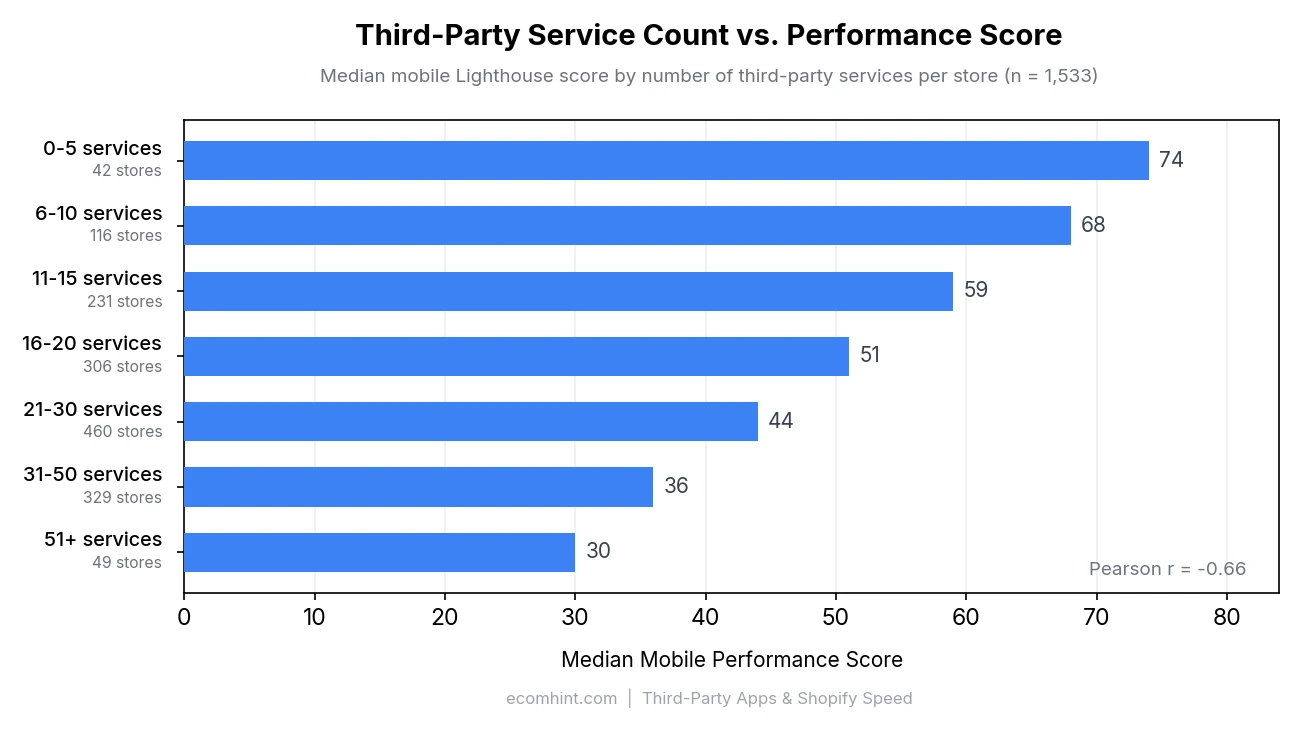
That is where the seconds go. Across 1,533 Shopify stores, homepages that load more third-party services score lower on mobile. Stores running five or fewer services had a median mobile score of about 74. The most common group, with 21 to 30 services, sat at about 44 (EcomHint's third-party apps analysis).
This guide covers Shopify Online Store themes, not headless Hydrogen builds. It starts with how to measure speed now that Shopify's old speed score is gone. Then it walks through how to speed up your Shopify store in the order the fixes tend to pay off.
| Lever | What it fixes | Effort |
|---|---|---|
| Apps and third-party scripts | JavaScript that blocks taps and delays the page | Low to medium |
| Hero image and other images | Slow main content (LCP) and page weight | Low |
| Theme, fonts and sections | Render delay and layout shift | Medium |
| Re-testing | Proof that a change worked | Low |
What Shopify already handles (and what's left to you)
On Shopify, hosting and caching are not your job. The Shopify Help Center lists what every store gets without any setup. That includes a CDN run by Cloudflare, HTTP/2, browser caching set to one year and gzip compression. JPGs are compressed automatically, and images are often served as .
The same page says Shopify "automatically minifies CSS and JavaScript files when they're requested by your storefront." That makes the familiar "minify your CSS and JavaScript" tip a low priority on Shopify. Minified code still has to be downloaded, parsed and run, so the amount of code your apps and theme load matters far more.
This is the big difference from a WordPress store. On WooCommerce, hosting, PHP and page caching come first, as the WooCommerce speed optimization guide explains. On Shopify you can't change any of those, so most of the levers sit in the storefront.
Shopify names three things as the biggest factors you control:
- your online store theme
- the apps you've installed
- third-party code you've added yourself, "including tag managers and the tags within them"
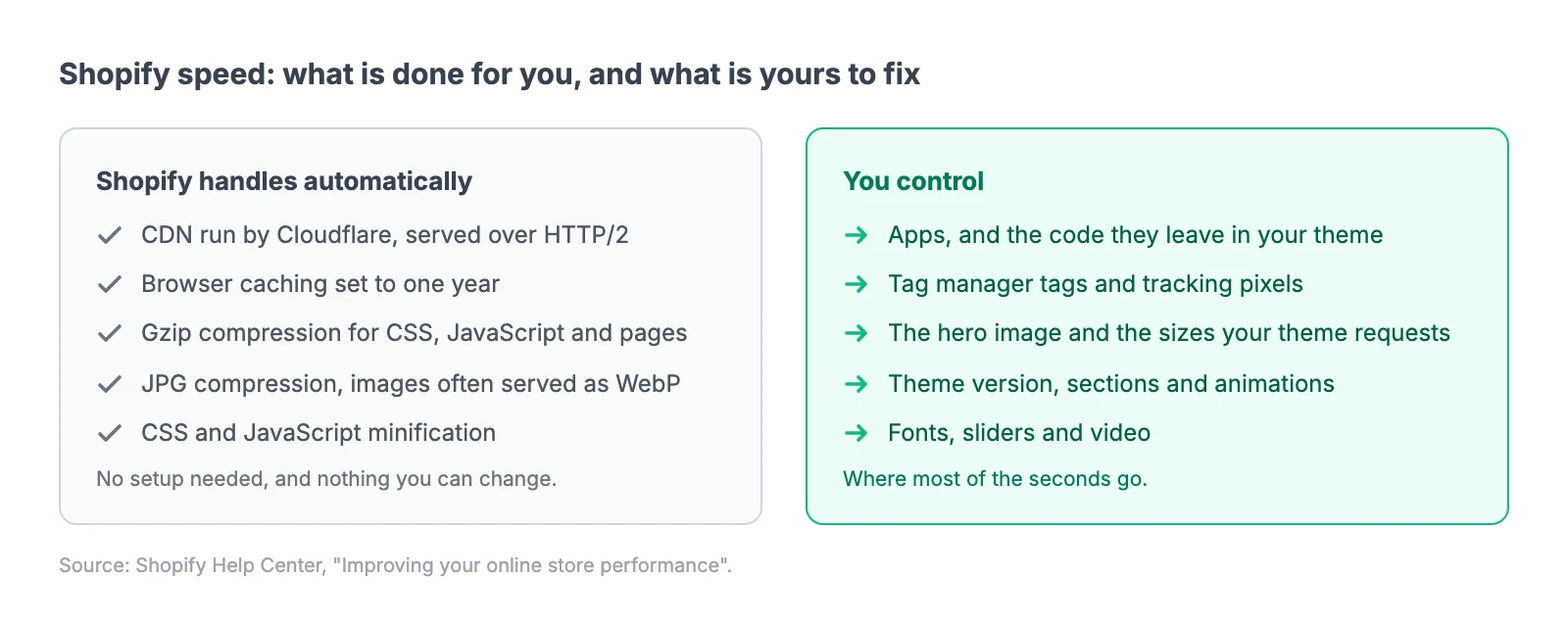
Key takeaway: Skip hosting, caching and work on Shopify. Spend that time on apps, scripts, images and the theme.
How to measure your Shopify store's speed
Measure before you change anything, and know which kind of number you're reading. Shopify's reports show how real visitors experienced your store. PageSpeed Insights runs one simulated lab visit and adds real-visit data from Chrome when Google has enough of it.
Shopify's web performance reports
Shopify retired its single speed score in January 2024. That score was a weighted Lighthouse average of your homepage and your busiest product and collection pages. Shopify itself said the scores "are not directly correlated to actual speed" (Shopify). The replacement is three Core Web Vitals measured on real visits: LCP, INP and (Shopify Performance blog, Shopify Help Center).
To find them:
- In your Shopify admin, go to Online Store. The Themes page shows a summary of all three metrics for the past 30 days.
- For the full reports, open Analytics, then Reports, and search for "contentful" (LCP), "next" (INP) or "cumulative" (CLS).
A few limits matter when you read them. The reports show the 75th percentile, the data can lag by up to 36 hours, and only the last 90 days are kept (Shopify Help Center). A store in private mode, behind a password page, collects no real-visit data, so a new store may show nothing yet.
Shopify rates each metric with Google's thresholds:
| Metric | Good | Poor |
|---|---|---|
| LCP (main content shows) | 2.5 s or less | Over 4 s |
| INP (response to taps and clicks) | 200 ms or less | Over 500 ms |
| CLS (layout shift) | 0.1 or less | 0.25 or more |
PageSpeed Insights and the lab score
PageSpeed Insights runs Lighthouse on one URL. Its field data covers that page, or your whole store when the page alone has too little Chrome traffic. The mobile lab test copies a slow phone on a throttled connection, so it is far harsher than most real visits.
On Shopify, the lab and the field disagree more than most owners expect. In a benchmark of 1,533 Shopify stores, only about 1% passed the 2.5-second LCP threshold in the mobile lab test. For real mobile visitors, about 91% passed (EcomHint Shopify speed benchmark). Read that gap as a direction rather than a like-for-like test: the lab number comes from simulated homepage loads, the field number from 28 days of visits across each whole store.
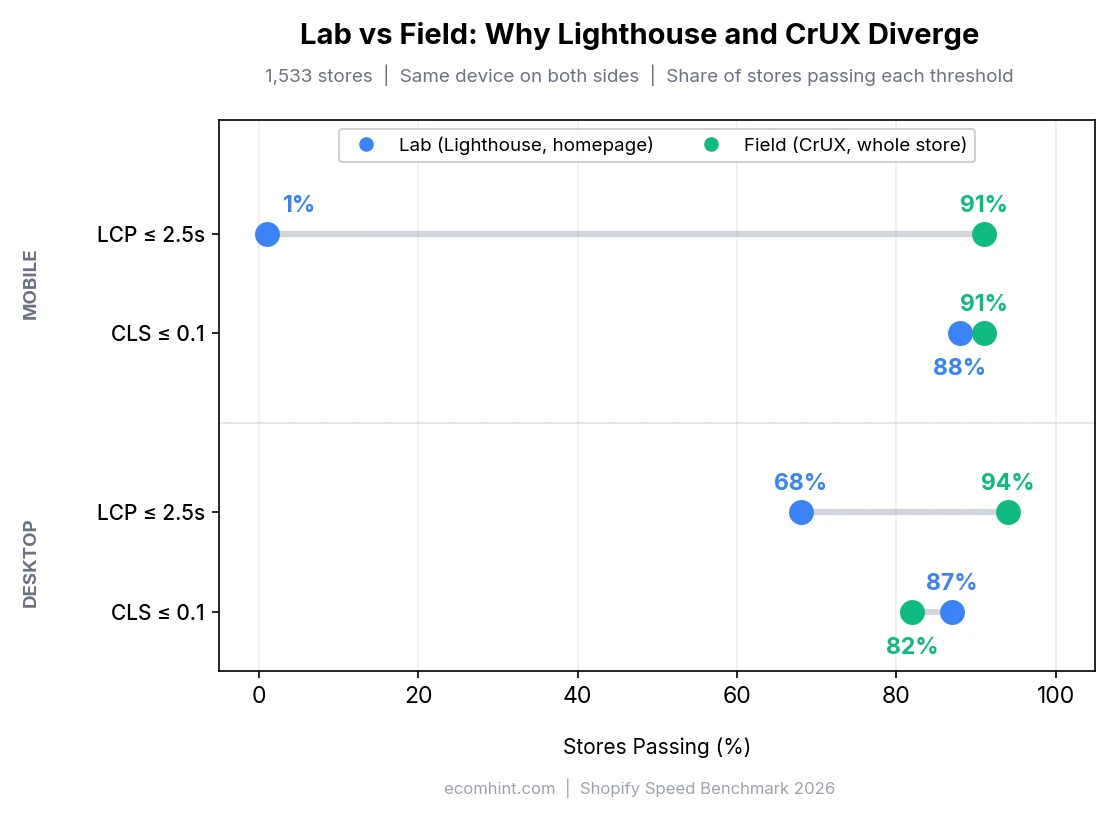
Use the lab report to find what to fix and the field data to judge whether shoppers feel it. The guide to reading a Lighthouse report for an online store explains the individual audits if you want the raw detail.
Test a product page, not just the homepage. Product pages scored lowest of the three page types in all nine industries of the benchmark (EcomHint product page analysis). A free speed test built for Shopify stores runs any page on mobile and desktop. It turns the findings into Shopify fix steps for your app list, theme editor and theme files.
Find out what slows your Shopify store
Why Shopify stores get slow: what 1,533 stores show
Third-party code is the most consistent drag in the data. EcomHint's analysis of 1,533 Shopify homepages found a strong negative correlation, r = -0.66 (third-party apps analysis). The more third-party services a page loads, the lower its mobile Lighthouse score tends to be. It's a correlation, not proof: stores with many services also tend to load heavier pages overall. The benchmark also only includes stores with enough Chrome traffic to have field data, so it leans toward established stores and reads best as a direction, not a census.
The times below are main-thread time: how much work Lighthouse attributed to each service on the browser's main thread, the same lane it uses to respond to taps and scrolling, during the mobile lab load. Three patterns in that data are worth acting on:
- Tag managers carry most stores' tracking. appeared on about 90% of the stores and used a median of about 486 ms of main-thread time, before counting the pixels it loads.
- A single service can cost more than a second. Signifyd, on about 2% of the stores, used a median of around 1.2 seconds of main-thread time. YouTube embeds, on about 7%, used around 485 ms.
- The main content is usually an image. About 77% of the stores had an image as their LCP element (EcomHint benchmark), so the hero image decides how fast most pages look.
Shopify's own guidance points the same way. Its help center says poor INP most likely means "too much JavaScript in your store from either theme code, app code, or third party/ code" (Shopify Help Center).
If you want to find each problem in PageSpeed Insights or Chrome DevTools first, the Shopify performance audit walkthrough covers eight of them one by one. The steps below fix the most common ones.
Step 1: Cut the apps and scripts you don't need
Removing a script takes its whole cost off the page. Deferring or delaying code only moves that cost to later in the visit, which can still count against INP once the shopper starts tapping.
Walkthrough
- List every third-party service your pages load. The third-party section of a PageSpeed Insights report lists the code by vendor, with how long each one kept the main thread busy.
- Ask what job each service still does. Does it bring in revenue, protect orders, handle consent, or give you data someone actually uses? Could it load later, or only on the pages that need it? The third-party apps analysis treats any service with more than 250 ms of main-thread time as worth a closer look.
- Uninstall what has no job left, then remove its leftovers. Shopify warns that "uninstalling an app doesn't automatically remove its code from your theme" and suggests asking the app developer for removal steps (Shopify Help Center). Duplicate the theme before you edit code, then search theme.liquid and your snippets for the app's name.
- Turn off app embeds you don't need. Apps built on theme app extensions add their scripts through app embeds, which you switch on and off in the theme editor.
- Clean up your tag manager. Shopify's own advice is to "audit your tag manager to remove any unused or low-value tags." Look for duplicate pixels too, such as an ad platform's Shopify app and a hand-added pixel firing for the same account.
Old script tags are on a deadline. Since October 1, 2026, apps can't create new storefront script tags, and Shopify will stop injecting them into storefronts on March 1, 2027 (Shopify developer changelog). Apps are moving those scripts to app embeds or, for tracking-only code, to web pixels. Until an app finishes the switch, an old tag and its replacement can load the same script twice. For any app that still uses a script tag, ask the developer whether the move is done and whether it now uses an app embed or a web pixel. An app embed has to be on in your published theme. A web pixel needs no action from you, but check that its tracking events fire only once.
Some scripts should stay early. A consent banner that loads late can leave tracking tags firing before the shopper has answered, or the whole page waiting on the banner. An A/B testing script that loads late can flash the original page before the variant replaces it. Delay nonessential widgets instead, such as chat or a review carousel further down the page, until the shopper interacts or scrolls near them.
When two apps do the same job, prefer the one with the Built for Shopify badge. Shopify requires those apps not to "reduce the storefront Lighthouse performance score by more than ten points" (Built for Shopify requirements). Ten points still matters, because the median store in the Shopify speed benchmark scores around 47 on mobile. Check the score before and after any new install.
Pro tip: Use a duplicate theme for code edits and app embed changes, and check its preview for anything that breaks. Uninstalling an app, editing tags or changing pixels affects the whole store, so follow the developer's removal steps and plan a way back first. After any change goes live, test add to cart, the cart, checkout, consent and purchase tracking, then compare the median of three PageSpeed Insights runs before and after.
Step 2: Fix the hero image, then the rest
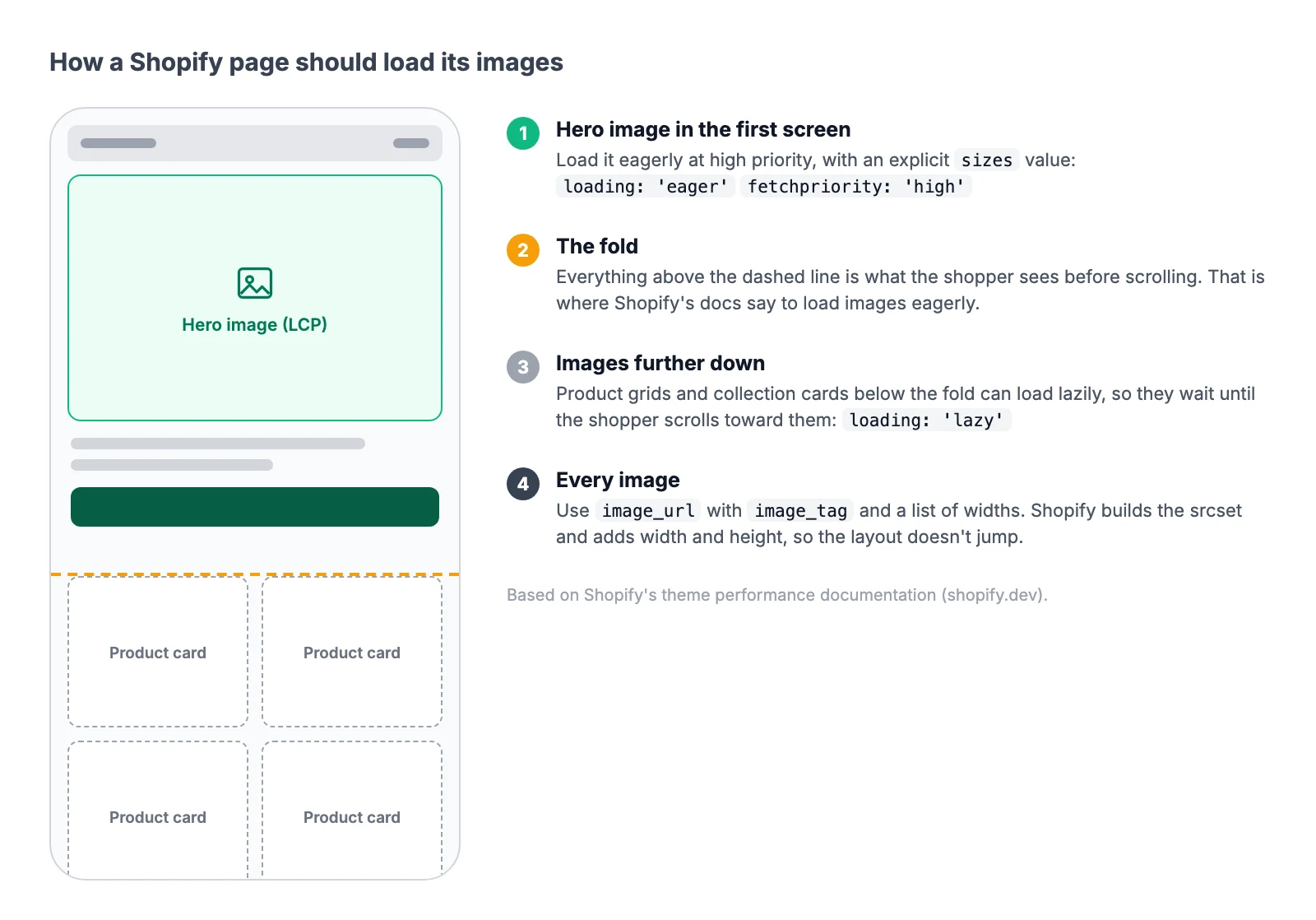
Make the first image on the page load first. Since most Shopify pages show an image as their main content, the hero image or the first product photo usually sets your LCP.
Walkthrough
- Load the hero image eagerly and at high priority. Shopify's theme documentation says to "eagerly load images visible in the initial viewport" and to keep off the LCP image (Shopify's LCP image guidance). The same page gives the first section's image
fetchpriority: 'high'. - Let Shopify build the image sizes. The
image_urlandimage_tagfilters build a srcset from the widths you list (Shopify's responsive image docs). They also add width and height attributes, which keep the layout from jumping. Images in the first viewport need an explicitsizesvalue, becausesizes: autoonly works on lazy images. - Lazy-load what sits further down. Product grids, collection cards and images below the fold can wait until the shopper scrolls toward them.
- Replace hero sliders and autoplay video where you can. A slider can load several large images for a spot where shoppers see one. A background video can leave the hero empty until its first frame arrives, so give it a poster image if you keep it.
- Load YouTube embeds on click. A facade shows the video's thumbnail and swaps in the real player only when the shopper clicks. In Chrome's example, the facade weighs about 3 KB and the player about 540 KB (Chrome for Developers).
- Check that each image arrives close to the size it displays at. Shopify compresses and resizes through its image CDN, but a theme can still request a larger version than the slot needs. Compare the displayed width with the file the page downloads, and adjust the theme's widths if they're far apart.
Here is the pattern from Shopify's documentation, shortened for a hero that is always the first section and your LCP element:
{{ section.settings.image
  | image_url: width: 1600
  | image_tag:
      loading: 'eager',
      fetchpriority: 'high',
      widths: '600, 900, 1200, 1600',
      sizes: '100vw'
}}
If merchants can reorder sections, follow Shopify's full example instead. It sets high priority only when section.index is 1 and lazy-loads sections further down the page.
Watch for apps that lazy-load every image on the page. Many themes already load the first section eagerly, and a speed app or a custom section can quietly undo that. The product image guide covers formats and sizing for the photos themselves.
Pro tip: Check which element is your LCP before you change anything. PageSpeed Insights names it in the LCP breakdown, and on product pages it is often the first product photo rather than a banner.
See where your Shopify store is losing speed and sales
Step 3: Tune your theme, fonts and sections
Your theme sets the starting point, and apps and customizations decide how much of it you keep. Shopify's theme performance page says that at scale "a well-optimized base theme is the biggest factor in the final store performance." It also publishes how real visits perform on 100 popular themes, its own and third-party ones. In the seven days before its October 13, 2026 update, with desktop and mobile combined, about 92% of eligible shops on Dawn passed all three Core Web Vitals. Across all listed themes, that pass rate ran from about 22% on the weakest to about 97% on the strongest (Shopify theme performance data).
Read that table with its filter in mind. It only counts shops with at least 100 views a day, a custom domain and one of the three latest versions of a theme. That makes it a picture of busy, up-to-date stores.
The Shopify Theme Store sets its own floor. A theme needs an average Lighthouse performance score of at least 60 across the home, product and , on desktop and mobile (Shopify's theme performance testing). Shopify runs that test on its own benchmark store, not on your store with its apps and content.
Update an outdated theme before you think about replacing it. Shopify's first recommendation is an up-to-date, optimized theme. Consider a different theme only when a fresh copy, loaded with your real content and apps, tests clearly better on the same pages.
Liquid and server response
Slow Liquid is the one server-side cost you do control. Shopify's developer docs say that "slow Liquid templates impact server response times," and that apps and changes to theme code can slow a store even when the theme was built for speed (Shopify Theme Inspector docs). Collection pages that loop over many products and app blocks that run their own Liquid are common culprits. The free Shopify Theme Inspector for Chrome shows which parts of your theme take longest to render.
Sections and features
- Keep page templates lean. Shopify warns that "high numbers of sections on pages can lower web performance."
- Test animations before you keep them. Shopify suggests comparing performance before and after you turn on page transitions or other animations.
- Paginate large collections. Shopify recommends for collections with many products, so fewer products load at once.
Fonts
Set font-display to swap, or use system fonts. Shopify's font_face filter adds no font-display value unless the theme passes one, and Chrome then hides text while the font downloads (Shopify's font swapping guide). Passing font_display: 'swap' shows fallback text right away. The swap itself can shift the layout when the fallback font is a different size, so check CLS afterward; Shopify's guide shows how to match the fallback with size-adjust. System fonts skip the download altogether (Shopify on system fonts).
Keep font files to a handful. Shopify's guidance calls one or two families good and says more than six font files "impacts performance" (Shopify's web font guidance).
Pro tip: With static fonts, every weight is its own file. A heading font in three weights plus a body font in three weights already adds up to six downloads. Variable fonts can hold several weights in one file, but check their size too.
Do Shopify speed optimization apps help?
A speed app can fix a diagnosed problem, but it can't remove the apps you don't need. These apps typically compress images, add lazy loading or delay scripts. None of that uninstalls a service that no longer earns its place, and some speed apps add storefront code of their own.
Independent tests of these apps are hard to find, so judge one by what it changes:
- Image compression mostly repeats what Shopify already does, since the image CDN compresses JPGs and often serves WebP.
- Automatic lazy loading can catch the hero image, which Shopify's own documentation says to load eagerly.
- Script delay helps most with chat and review widgets. Delaying a consent banner or an A/B test brings back the problems from step 1.
If you try one, check it like any other app: the score on the same pages before and after, and the Built for Shopify badge.
Prioritize and re-test
Start with the metric that is poor. If INP or the lab's blocking time is weak, begin with apps, tags and heavy scripts. If LCP is poor, look at the element PageSpeed Insights names as your LCP and how early it loads. If CLS is poor, check image sizes, font swaps and sections that load late.
When several metrics are poor and no single cause stands out, start with the fixes that tend to pay off most for the least risk, and leave the most disruptive for last:
- Apps, tags and the code they left behind.
- The hero image, then the rest of your images.
- Theme updates, fonts and section count.
- A theme change, only if a fresh copy tests clearly better. It comes last because it's the most work, not because the theme matters least.
Check the lab score right away and the field data a month later. A lab run reflects a change immediately. PageSpeed Insights field data covers the previous 28 days (Google), so real-visit numbers move gradually over the following weeks.
Small gains are worth the work. In Deloitte's 2020 study with Google of 37 brands, a 0.1-second improvement across the mobile journey was associated with 8.4% more retail conversions (Deloitte). In an A/B test that web.dev published in 2021, Vodafone found that a 31% better LCP led to about 8% more sales (web.dev).
For speed work on other platforms, the ecommerce site speed guide covers hosting and caching choices that don't apply on Shopify.
Frequently asked questions
How can I speed up my Shopify store?
Start with what you load. Remove apps and tags you don't use, along with code they left in your theme. Then make the hero image load first, size your other images, and keep fonts and sections lean. Shopify already handles the CDN, caching, compression and minification (Shopify Help Center).
Why is my Shopify store loading slowly?
Usually because of third-party code and a heavy first screen. Across 1,533 Shopify stores, mobile scores fell steadily as the number of third-party services rose (EcomHint). The median was about 74 at five or fewer services and about 44 at 21 to 30.
Does Shopify still have a speed score?
No. Shopify replaced its single speed score with web performance reports in early 2024. They show LCP, INP and CLS from real visits at the 75th percentile, with a summary in Online Store and full reports under Analytics.
Do too many apps slow down a Shopify store?
They can, because each app that adds storefront code adds scripts the browser has to download and run. Shopify lists installed apps among the biggest factors in store speed, and uninstalling an app doesn't remove its theme code automatically.
How long until speed fixes show up?
Lab scores change on the next run. Real-visit data takes longer, because PageSpeed Insights field data covers the previous 28 days and Shopify's reports can lag by up to 36 hours. Expect a few weeks before the field numbers settle.

Jakub is the founder of Ecomhint, an AI-powered ecommerce audit tool focused on UX and conversion optimization. He helps online stores identify friction points across product pages, cart, and checkout using CRO best practices and original research data.
Jakub is the founder of Ecomhint, an AI-powered ecommerce audit tool focused on UX and conversion optimization. He helps online stores identify friction points across product pages, cart, and checkout using CRO best practices and original research data.
