Checkout Error Messages: Examples for Cart, Forms & Payments
Error messages for every step from cart to payment: what a good one says, when to show it, which card declines to explain, the WCAG rules, and how to change them on Shopify and WooCommerce.
A checkout error message has one job: tell the shopper what went wrong and how to fix it, right next to the field, without blaming them. Most stores don't get there. In Baymard Institute's 2025 checkout benchmark, around 94% of sites don't adapt their validation messages to the specific problem. They show the same generic message, such as "Invalid entry", whatever the shopper typed.
That matters because errors end orders:
- About 17% of shoppers said they left because the website had errors or crashed, and about 10% because their card was declined, in Baymard's abandonment survey. The cart abandonment guide covers the other reasons.
- About 34% of sites wipe the card details after a validation error, Baymard's payment research found, so one mistyped field means typing the whole card again.
- Around 31% of sites have no at all, Baymard's January 2024 research shows, so shoppers only learn about a problem after they press the button.
- Vague wording left test participants taking up to five minutes to resolve simple errors, such as signing in, in Baymard's 2023 testing.
This guide covers the error messages a shopper can hit from cart to payment: cart errors, checkout form errors and card declines. It includes copy you can adapt, the accessibility rules that apply, and how to change the messages on Shopify and WooCommerce.
What Makes a Checkout Error Message Work
Nielsen Norman Group's error message guidelines boil down to three questions: can the shopper see the error, can they understand it, and can they fix it quickly? In a checkout, that turns into five rules.
- Say exactly what happened. "Invalid input" names no field and no problem. "Enter a 10-digit phone number, like 555 123 4567" names both.
- Say how to fix it. Good messages read as instructions. An example of the expected format often does more than a description of the rule.
- Put the message next to the field, and mark the field with more than color. Red borders alone fail shoppers with color vision deficiencies. Pair the color with an icon and text.
- Keep what the shopper typed. One wrong digit shouldn't wipe the whole form.
- Don't blame, apologize or joke. NN/g advises against words like "invalid", "illegal" or "incorrect" that imply the user did something wrong. The GOV.UK Design System adds three more: "please" implies a choice, "sorry" doesn't help fix anything, and "oops" is too informal.
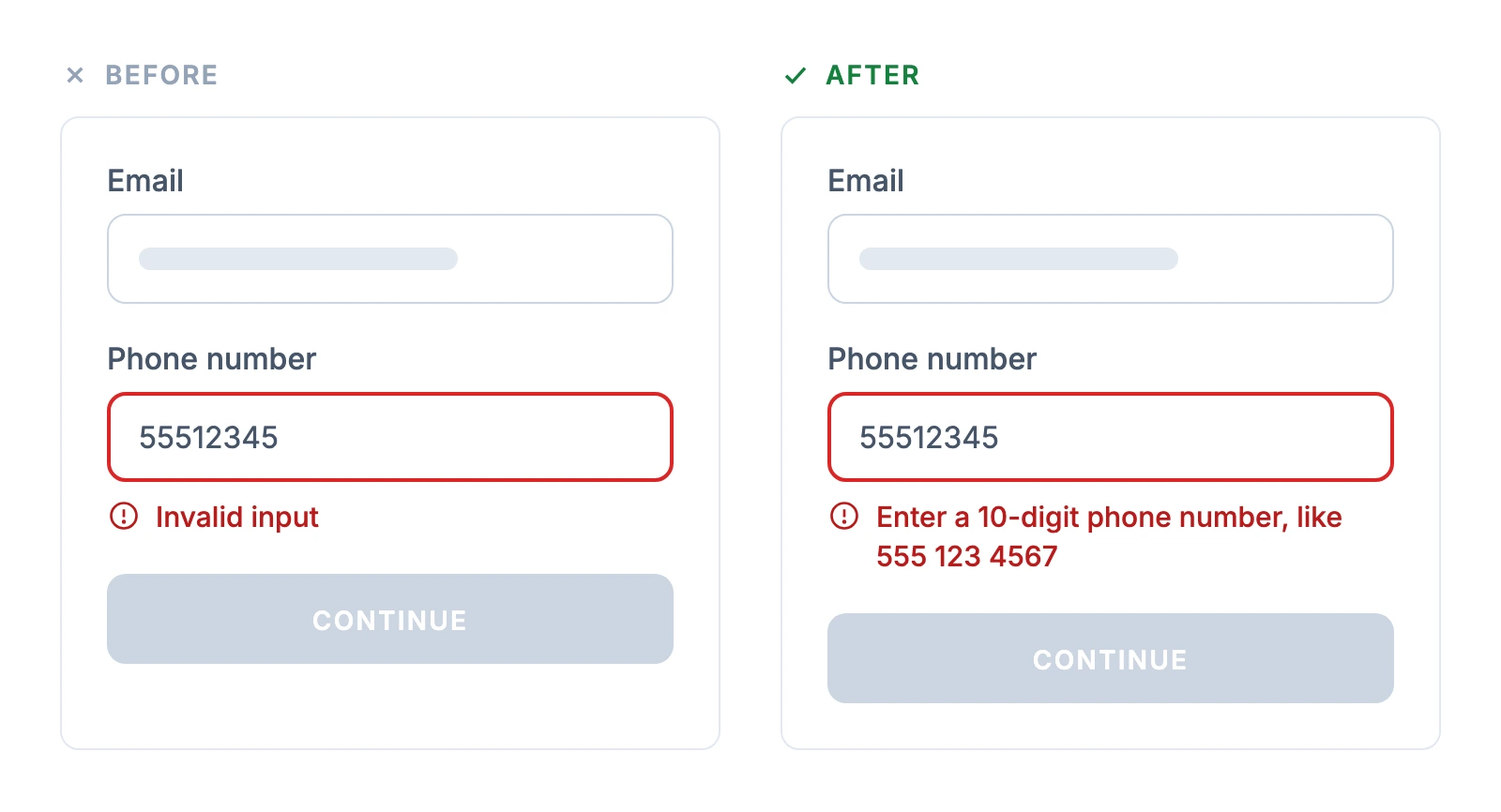
Baymard's testing shows why specific wording pays off. When error messages gave specific details, error-recovery time improved for all users, and far fewer participants got completely stuck.
When to Show Errors: Inline Validation Timing
Check a field when the shopper leaves it, and clear the error the moment they fix it. Baymard's inline validation research recommends checking each field on blur, updating the error with every keystroke once it appears, and showing a positive confirmation when a field is correct. It also warns against premature validation, such as flagging an email address as wrong as soon as the shopper starts typing.
A widely cited experiment on timing is older and wasn't run on a checkout. In Luke Wroblewski's 2009 study, 22 participants filled in six versions of a registration form. The best inline validation version, compared with validation on submit, brought:
- a 22% increase in success rates
- 22% fewer errors
- a 31% higher satisfaction rating
- 42% less time to complete
Feedback after the user finished a field beat feedback while typing on the easy fields. For harder fields such as passwords, Wroblewski suggests real-time feedback with a short delay.
Not every design system agrees. GOV.UK tells its teams to validate only when the user tries to move on, not when they leave a field. That guidance comes from testing government services, not stores. For checkouts, Baymard's ecommerce testing supports on-blur checks, so treat GOV.UK as the reminder not to fire errors too early.
Required fields depend on the model you choose. With Baymard-style inline validation, flag a required field once the shopper leaves it empty, never just because they clicked into it. With a GOV.UK-style model, wait until they try to continue. In either model, give the shopper a chance to fill in the field before you show an error.
Inline validation is feedback, not enforcement. Check every rule that affects stock, price, eligibility, shipping or payment again on the server before accepting the order, because browser-side checks can be bypassed or fail to load.
Find the friction in your cart and checkout
Cart Error Messages
Cart errors happen before the shopper has committed. A clear message can keep the sale alive; a dead end usually ends it.
Out-of-Stock Items
Don't remove an item silently, and give the shopper a next step.
- Bad: "Item not available"
- Good: "This item sold out while it was in your cart. Here are 3 similar items, or we can email you when it's back." [View similar] [Notify me]
The out-of-stock guide covers restock alerts and alternatives in depth.
Quantity Limits
Explain the limit and fix the cart for the shopper.
- Bad: "Maximum quantity exceeded"
- Good: "You can buy up to 2 of this item per order. We've changed your cart to 2." [Continue to checkout]
Expired Carts and Sessions
Keep the cart and tell the shopper how to get it back.
- Bad: "Your session has expired. Please start over."
- Good (guest): "Your session timed out, but your cart is saved on this device." [Continue to checkout]
- Good (signed-in customer): "You were signed out for security. Sign in again to pick up where you left off." [Sign in]
Coupon Code Errors
A rejected code can send a shopper off to search for another one. Baymard's payment research found that visible promo fields already tempt users to leave checkout and hunt for codes, and a vague "Invalid code" can make that hunt more likely. Say which rule the code broke and what the shopper can still do.
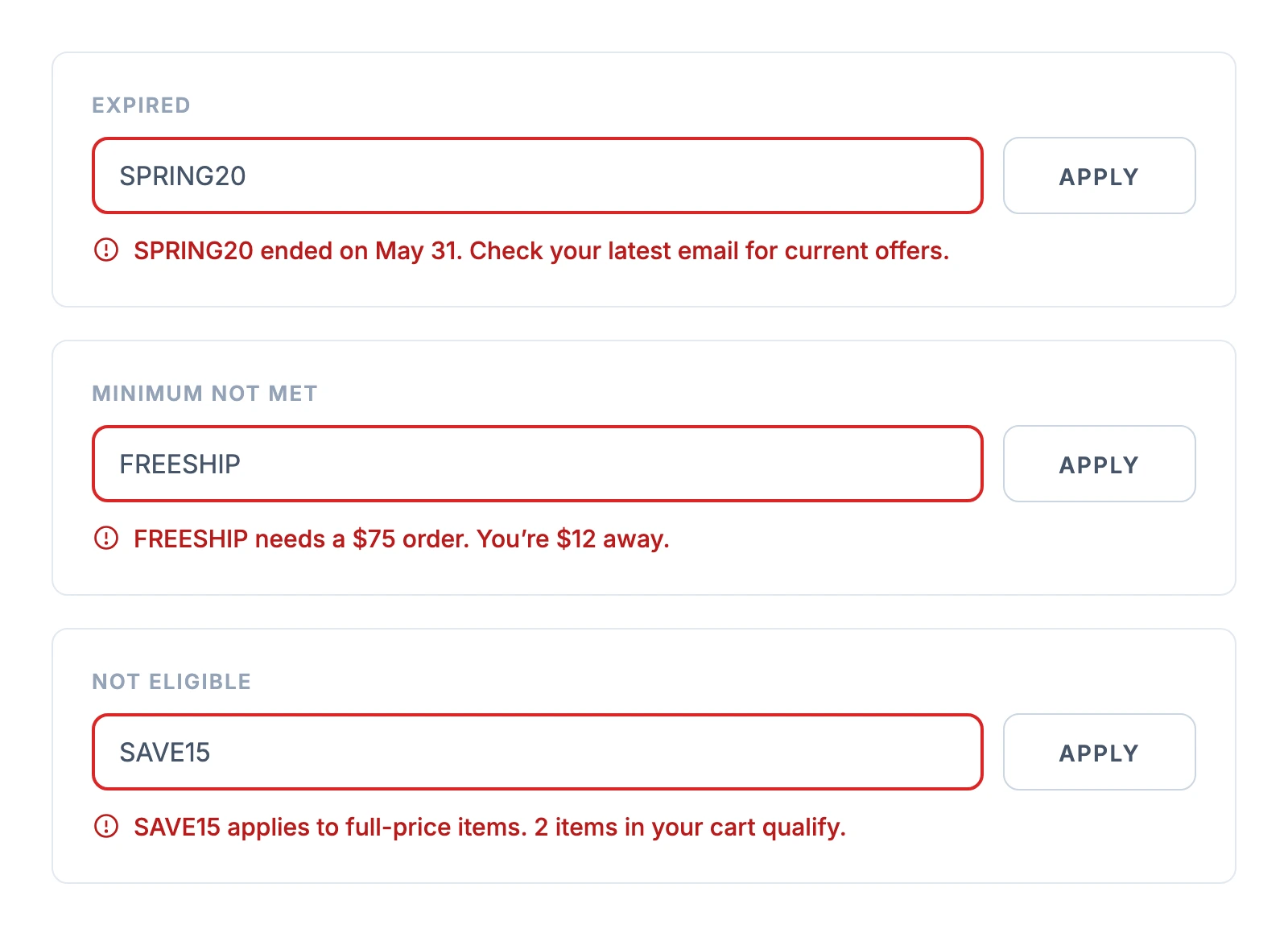
- Expired code — "SPRING20 ended on May 31. Check your latest email for current offers."
- Minimum not met — "FREESHIP needs a $75 order. You're $12 away." The free shipping threshold guide covers how to phrase the amount left.
- Not eligible — "SAVE15 applies to full-price items. 2 items in your cart qualify." [Apply to those items]
- Already used — "This code can be used once per customer, and you've used it."
Coupon messages usually appear without the page reloading, so screen readers need them announced (see the accessibility section below).
Shipping Restrictions
Name the item and the restriction, and offer both ways out.
- Bad: "Cannot ship to this address"
- Good: "We can't ship the Kitchen Knife Set to a PO box. Enter a street address, or remove the item to continue." [Update address] [Remove item]
Checkout Form Error Messages
Form errors are where most of the wording advice applies. Good checkout form design prevents many of them in the first place: the right input types, autocomplete attributes and labels above fields.
Email Address
Show the expected format, and catch typos in common domains.
- Bad: "Invalid email"
- Good: "Enter an email address in the correct format, like [email protected]"
- Good: "Did you mean [email protected]?" [Use [email protected]] [Keep what I typed]
Phone Number
Give the format, and say why you need the number if the field is required. The examples here use a US format. A store that ships to one country should show a familiar local example; a store that ships internationally should ask for the country code and accept spaces, brackets and hyphens.
- Bad: "Invalid phone number"
- Good (US store): "Enter a 10-digit phone number, like 555 123 4567. We only use it for delivery updates."
- Good (international store): "Enter a phone number with the country code, like +44 20 7946 0000."
Shipping Address
Tell the shopper which part to check, and let them keep an address you can't verify.
- Bad: "Address not found"
- Good: "We couldn't find this address. Check the street number and ZIP code, or use it as entered." [Check address] [Use as entered]
- Good: "Did you mean 123 Main Street, Springfield, IL 62704?" [Use suggested address] [Keep my address]
The address validation guide covers autocomplete and verification tools for Shopify and WooCommerce.
Card Number
Detect the card type, so the message can use the right rules. Baymard recommends detecting the card type from the first digits instead of asking shoppers to choose it. Without it, the form can't tell a 15-digit American Express number from a Visa or Mastercard number that is missing a digit.
- Bad: "Invalid card number"
- Good: "This card number is too short. Check the long number on your card."
Security Code
Name the code the way it appears on the card, and change the hint for American Express. Most cards have a 3-digit code on the back; American Express has a 4-digit code on the front. GOV.UK's payment card pattern advises against "CVV" and other acronyms in the label.
- Bad: "Invalid CVV"
- Good: "Enter the 3-digit security code on the back of your card"
- Good (American Express): "Enter the 4-digit security code on the front of your card"
Expiry Date
Say what the date has to be, and match the format printed on the card.
- Bad: "Invalid expiration date"
- Good: "The expiry date must be in the future. Check the date printed on your card (MM/YY)."
Billing Address
Prevent the error with one line of copy before the shopper types. Joshua Porter described a checkout where transactions kept failing because shoppers entered an address that didn't match their card. He added "Be sure to enter the associated with your credit card" at the top of the form, "and just like that, the errors went away." It is an anecdote from 2009, not a measured test, but the fix costs one sentence.
- Bad: "Billing address doesn't match"
- Good: "This billing address doesn't match the one your card company has. Check the street number and ZIP code on your card statement."
Several Errors at Once
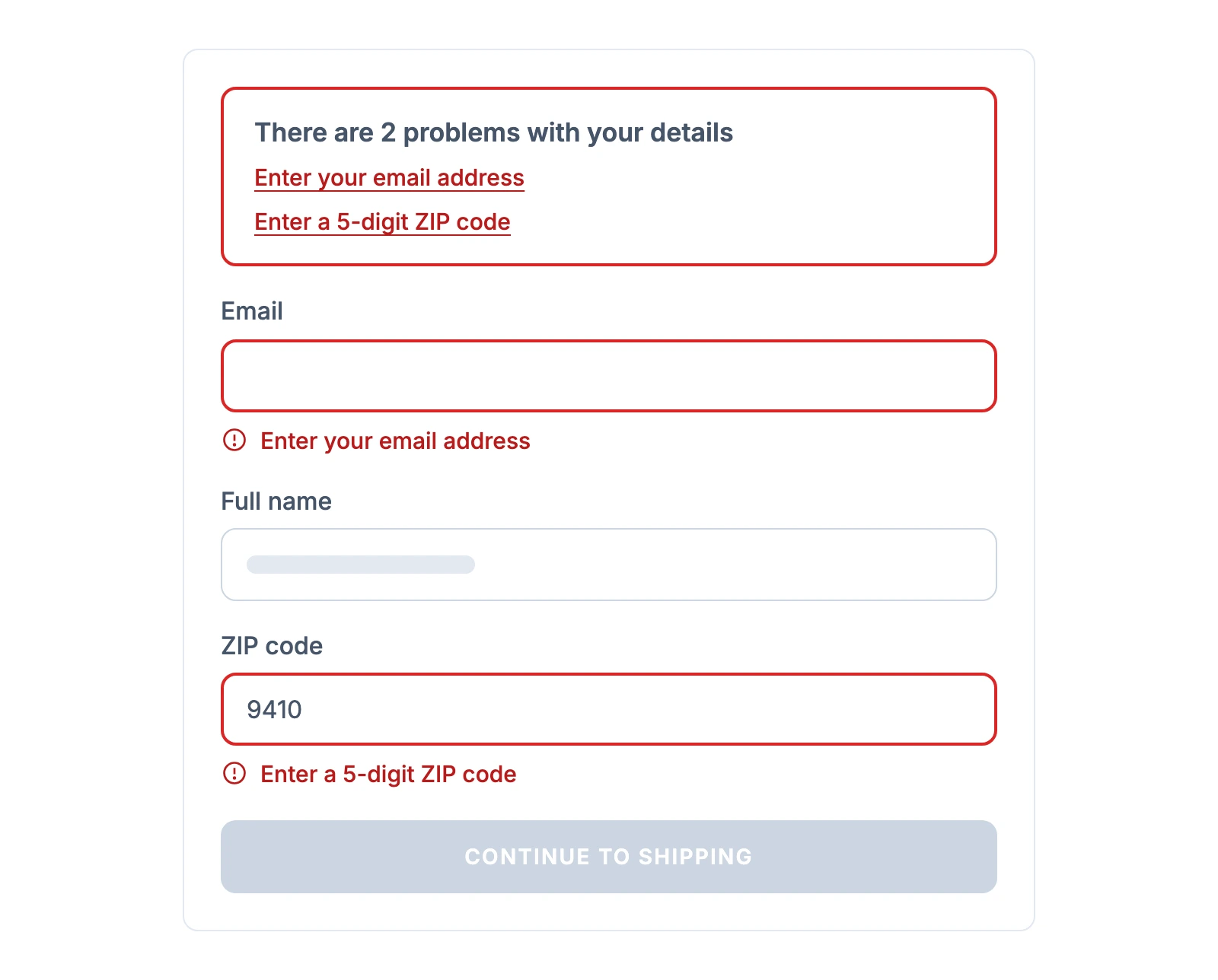
List every error at the top of the form, and mark each field. Baymard's checkout flow research recommends scrolling the shopper straight to a single error, and showing a summary at the top when there are several. In the GOV.UK error summary pattern, each item links to its field.
Card Declined Messages: What You Can and Can't Change
A declined card is often the most stressful moment in a checkout: the shopper has decided to buy and is told their payment failed. Baymard's payment research found that payment errors have a low recovery rate in testing, so the shopper needs an obvious next step.
On most stores, the checkout platform or the payment provider writes the decline message, not the store owner. What you can change depends on how your store takes payment:
| Payment setup | Who shows the decline | What you can change |
|---|---|---|
| Shopify checkout | Shopify | The wording of Shopify's default payment errors, except on Shop Pay. Shopify decides which message appears |
| Hosted payment page, such as PayPal, Stripe Checkout or Comgate | The provider, on its own page | Not the message. You choose the payment methods on offer, any retry settings the provider has, and what your store shows when the shopper comes back |
| WooCommerce with a card payment plugin | The plugin, inside your checkout | Depends on the plugin. The Stripe plugin lets a developer replace its messages |
| Custom checkout built on a provider's payment fields, such as Stripe Elements | Your developer | The whole message, within the provider's rules further down |
What Every Store Can Do
- Offer a second way to pay. Baymard recommends keeping alternative payment methods available when a card fails. On Shopify and on hosted pages, the methods you turn on are the ones a declined shopper can switch to. Stripe Checkout shows the decline and lets the customer try again, and PayPal's integration guide has a declined payment restart so the buyer can pick another option. On a phone, where retyping a card number is hardest, the mobile checkout guide covers recovery patterns.
- Rewrite the text you do own. On Shopify, the payment error wording is in the Checkout payment errors section under Edit default theme content > Checkout & system, and Shopify notes that Shop Pay doesn't use these edits. On WooCommerce, when a gateway sends a shopper back after a failed payment, the order confirmation page says the order "cannot be processed as the originating bank/merchant has declined your transaction" and offers a button to pay again. A developer can reword it with a translation; other methods depend on whether the page uses the classic template or the Order Confirmation block.
- Check the follow-up. WooCommerce includes an "Order failed" email that asks the shopper to return and "try a different method of payment." Review its wording under WooCommerce > Settings > Emails. On Comgate, you set how long a shopper can retry a failed payment, from 30 minutes up to the default 7 days (Comgate).
- Trigger a decline and look at what shoppers see. Use your provider's test mode and its decline test card, on desktop and on a phone, following the testing steps later in this guide. You can't reword a provider's page, but you can check that the way back to your store and to another payment method is easy to find.
Some declines hit genuine customers. Checkout.com estimates that about $50.7 billion was lost to false declines in 2022 across the US, UK, France and Germany. A clearer message won't stop a false decline, but a second payment method gives a genuine customer a way to finish instead of a reason to leave.
If You Write the Message Yourself
This part applies to custom payment steps and to payment plugins that let you replace their messages. The instinct is to explain exactly why the card failed. The payment processors say otherwise. Stripe notes that card issuers categorize most declines as generic and discuss the specifics only with the cardholder. For declines flagged as fraud, lost or stolen cards, Stripe's decline code reference says not to report the specific reason and to present them like a generic decline. Adyen gives the same instruction: "do not expose the details of the refusal reason to shoppers."
Explain only the declines your payment provider lets you show, and keep every other decline generic. Stripe identifies a few actionable codes, such as an incorrect security code, an expired card and insufficient funds. Adyen tells merchants not to expose refusal reasons at all. The table below shows messages for the cases a provider like Stripe allows; with a stricter provider, use the generic message for everything.
| Decline | What the shopper can do | Message |
|---|---|---|
| Incorrect security code | Fix the code | "The security code doesn't match this card. Check the code on your card and try again." |
| Expired card | Use another card | "This card has expired. Use another card or pay another way." |
| Insufficient funds | Use another method | "This card doesn't have enough funds for this order. Try another card or pay another way." |
| Generic, fraud, lost or stolen card | Try another method or call the bank | "Your card was declined. You haven't been charged. Try another card, pay another way, or contact your card issuer." |
| Authentication (3D Secure) not completed | Try again | "Your bank's verification didn't finish. Try again, or use another card." |
| Confirmed failure before the payment went through | Try again | "We couldn't process your payment. No charge was made. Try again." |
| Payment status unknown or still processing | Wait for confirmation | "We're checking your payment. Don't try again yet; we'll show the result here in a moment." |
Only say "you haven't been charged" when your payment setup confirms it. Where your processor places a temporary authorization hold, say that instead. When the payment status is unknown, don't invite a retry until your system has confirmed the outcome, for example through the provider's status check or webhook, and use the provider's idempotency feature so a second attempt can't create a second charge (Stripe).
Two more rules keep a custom payment step forgiving:
- Keep the rest of the form, and let the payment provider keep the card. Making a shopper retype everything after a decline adds work at the moment they are most likely to give up. Keep the non-card fields yourself. For card details, rely on your provider's hosted or tokenized payment fields; never store or refill raw card numbers or security codes yourself.
- Don't blame the shopper or the card. "Your card was declined" states a fact; "You entered invalid card details" guesses at a cause you often can't see.
Make Error Messages Accessible
Accessible error messages are also clearer ones. The Web Content Accessibility Guidelines (WCAG) 2.2 set out what checkout errors need:
- Describe the error in text (3.3.1 Error Identification, level A). A red border isn't enough; the error needs words, and the field it belongs to needs to be identified.
- Suggest the fix when you know it (3.3.3 Error Suggestion, level AA). The criterion has an exception when a suggestion would jeopardize security, which fits fraud-related declines, where the processors say not to share the reason.
- Announce messages that appear without a page load (4.1.3 Status Messages, level AA). "Code applied" or "This code has expired" needs a status role or live region so screen readers announce it.
- Provide error prevention for the payment (3.3.4 Error Prevention, level AA). For financial transactions, submissions must be reversible, checked for errors with a chance to correct them, or confirmed before they go through.
- Don't make shoppers retype what they already entered (3.3.7 Redundant Entry, level A). A "billing address same as shipping" option covers the most common case.
Two habits cover most of this. Connect each error to its field so screen readers read them together. When the shopper submits a form with errors, move focus to the error summary, or to the field itself when there is only one error.
Check what your cart tells shoppers before they reach checkout
How to Change Error Messages on Shopify and WooCommerce
Shopify
You can rewrite checkout error messages on any Shopify plan. Shopify's help center on translating your checkout describes editing checkout content under Settings > Checkout > Checkout language > Edit checkout content, for example changing the default "can't be left blank" message. Theme-level text lives under Edit default theme content > Checkout & system.
Two limits apply:
- Shop Pay only partly uses your error text. Shopify's page on changing the wording in themes lists checkout field errors as partly applied to the Shop Pay checkout and checkout payment errors as not applied at all.
- Custom checks and custom placement need more than text edits. Checkout extensions on the information, shipping and payment steps are available only on Shopify Plus. The Cart and Checkout Validation function can block checkout with your own error message, and Shopify's Functions documentation says public App Store apps that contain functions work on any plan, while custom apps built on them need Plus.
WooCommerce
Check which checkout you run before you edit anything. The checkout block has been the default for new WooCommerce stores since version 8.3; stores that updated from older versions keep the classic checkout. Open your Checkout page in the editor: a Checkout block means the block checkout, while a [woocommerce_checkout] shortcode means the classic one.
Then keep the change safe. Add code through a code snippets plugin, a child theme or a small custom plugin, never by editing the parent theme. Change only the exact message you want to replace, and test the checkout, including a failed test payment, on a staging copy first. Block checkout validation runs on the Store API and usually needs a developer.
- On the classic checkout, rewrite messages with the
woocommerce_add_errorfilter. Messages go throughwc_add_notice(), so a small plugin or your theme'sfunctions.phpcan change their wording. Payment plugins often keep their own messages and filters, such as the Stripe plugin'swc_stripe_localized_messages. - On the checkout block, the classic hooks don't fire. The block runs through the Store API, so hooks such as
woocommerce_after_checkout_validationnever run. WooCommerce's developer docs use thewoocommerce_checkout_validate_order_before_paymenthook for your own checks on the server and the validation data store for field errors in the browser.
How to Audit and Test Your Error Messages
Trigger every error on purpose, on desktop and on a phone. Submit empty required fields, type a malformed email, try an expired coupon and a code below its minimum. Test payment failures only in a development store, a staging checkout or your gateway's test mode, with the provider's test cards and never real card details. If test mode affects your live store, keep the test short and confirm live payments work again afterwards. Screenshot each message.
Then grade each one:
- Does it name the field and the problem?
- Does it say how to fix it?
- Does it sit next to the field, with an icon or text as well as color?
- Did the form keep everything else the shopper typed?
- Does it avoid "invalid", "please", "sorry" and error codes?
Track three numbers to see whether changes work:
- Field error rate, the share of checkouts that hit an error on each field
- Error recovery rate, the share of shoppers who hit an error and still complete the order
- , split by decline code where your processor reports it
Test one message type at a time, starting where the most shoppers hit errors. An A/B test sample size calculator shows how much traffic you need to detect the difference. For the rest of the checkout, the checkout optimization guide covers the steps around these messages.
Error Message Templates
The two payment rows apply only where your setup lets you write the message yourself.
| Error | Message | Next step |
|---|---|---|
| Item sold out in cart | "This item sold out while it was in your cart. Here are 3 similar items." | View similar / Notify me |
| Quantity limit | "You can buy up to 2 of this item per order. We've changed your cart to 2." | Continue to checkout |
| Coupon below minimum | "FREESHIP needs a $75 order. You're $12 away." | Keep shopping |
| Coupon expired | "SPRING20 ended on May 31. Check your latest email for current offers." | Continue without code |
| Email format | "Enter an email address in the correct format, like [email protected]" | Fix the field; clear the error once it's correct |
| Phone format (US store) | "Enter a 10-digit phone number, like 555 123 4567" | Fix the field; clear the error once it's correct |
| Address not found | "We couldn't find this address. Check the street number and ZIP code, or use it as entered." | Use as entered |
| Card declined (generic) | "Your card was declined. Try another card, pay another way, or contact your card issuer." Add "You haven't been charged" only when your payment system confirms no charge or hold. | Use another card / Pay another way |
| Security code | "The security code doesn't match this card. Check the code on your card and try again." | Try again |
Frequently Asked Questions
How long should a checkout error message be?
As short as it can be while still saying what went wrong and how to fix it. NN/g asks for messages that concisely and precisely describe the issue, and GOV.UK tells writers to get to the point. One sentence that names the problem, followed by the fix or an example, covers most form errors.
Should error messages show error codes?
Not as the message itself. NN/g advises hiding or minimizing obscure error codes, because they mean nothing to shoppers. If a shopper may need to contact support, add a short reference after the plain-language message, such as "Reference: 4532 if you contact us."
How should I show several errors at once?
Show a summary at the top of the form that lists each error as a link to its field, and keep a message next to each field. Baymard recommends scrolling the shopper to the error when there is only one. Keep everything the shopper typed so they only fix what's wrong.
Should I use humor in error messages?
No. NN/g advises avoiding humor in error messages, and GOV.UK rules out informal language like "oops." A shopper whose card was just declined is anxious, and a joke reads as dismissive. Save personality for low-stakes pages such as a 404.
What does "invalid action sent to checkout reducer" mean?
It is most likely a developer error from a custom or headless JavaScript checkout, not a message a platform writes for shoppers. A "reducer" is the piece of code that updates the checkout's state, and this error means it received an action it doesn't know how to handle. Shoppers shouldn't see it. Log the technical message for your developers and show a plain one instead, such as "We couldn't update your checkout. Refresh the page and try again."

Jakub is the founder of Ecomhint, an AI-powered ecommerce audit tool focused on UX and conversion optimization. He helps online stores identify friction points across product pages, cart, and checkout using CRO best practices and original research data.
Jakub is the founder of Ecomhint, an AI-powered ecommerce audit tool focused on UX and conversion optimization. He helps online stores identify friction points across product pages, cart, and checkout using CRO best practices and original research data.
